 Creator MAX
Getting started
What is Creator MAX
Creator MAX is a native Photoshop panel that runs leading AI image models from Google, OpenAI, and xAI in one picker, inside your document. Generate, inpaint, and iterate without leaving Photoshop, on your own API keys.
One panel, eleven models
Three providers and eleven image models live in the same panel. Pick the right one for each shot and switch on every generation. Calls go straight from Photoshop to each provider on your own key. No markup, no Bielfor server in the path, no telemetry.
Built for the document
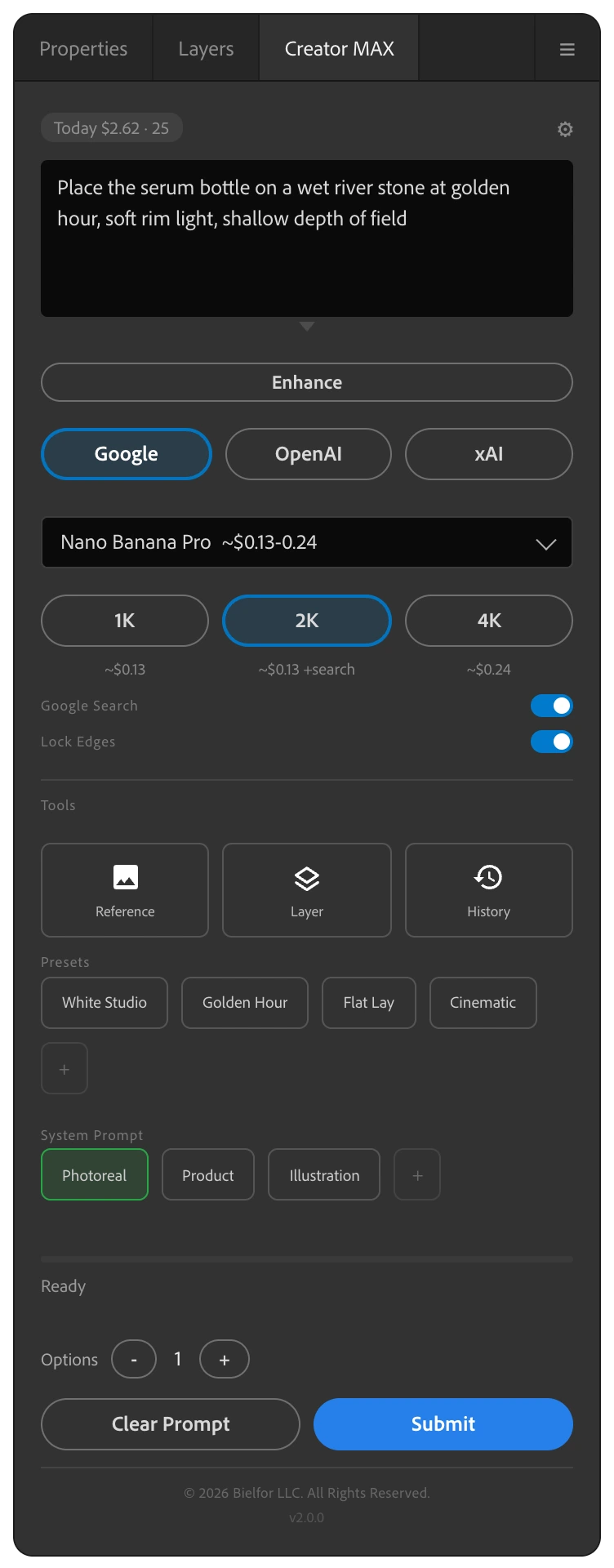
Creator MAX reads your active selection and pastes results back as Photoshop layers, matched to your selection's aspect ratio. It is a generation and editing tool that lives where the work already is, not a separate app you tab into.
Pay once
Creator MAX is a one-time $49.99 purchase through the Adobe Creative Cloud Marketplace. It includes a perpetual license to the purchased version and every future update, free for life. Image generation is billed directly by each provider at their own rates.
Local-first
Prompts, reference images, history, and the spend ledger are stored on your machine. Generation and optional Enhance Prompt requests go directly to the chosen AI provider. Store licensing is separate: the aescripts build also contacts aescripts for license validation.
Install
Creator MAX installs as a UXP panel through Adobe Creative Cloud.
Requirements
- Adobe Photoshop 2025 (version 26.0) or later, including the Beta channel.
- macOS or Windows.
- At least one API key (Google, OpenAI, or xAI).
Steps
- Buy Creator MAX on the Adobe Exchange Marketplace.
- It installs automatically through Creative Cloud.
- Open Photoshop and find Creator MAX under Plugins.
- Open Settings (the gear in the panel), paste a provider key, and generate.
The panel
Creator MAX is a dockable UXP panel. It sizes from 240×400 up to 2000×2000, and opens at a comfortable 280×560 docked. Dock it next to your Layers panel, or float it. Every section can be hidden, so you can shrink it to just a prompt box and Submit if that is how you work.
Your first generation
From a blank document to your first result in under a minute.
Generate
- Open the panel and pick a model. For a new installation, start with Nano Banana 2.1, the Google default in Creator MAX 2.3.0. An existing saved choice is preserved.
- Make a selection on your canvas. Creator MAX generates into the selection, so it needs one.
- Type a prompt. Optionally press Enhance to expand a rough idea into a production prompt.
- Pick a resolution and how many options you want (1 to 4).
- Press Submit. Results paste back as layers, grouped when you ask for more than one.
While it runs
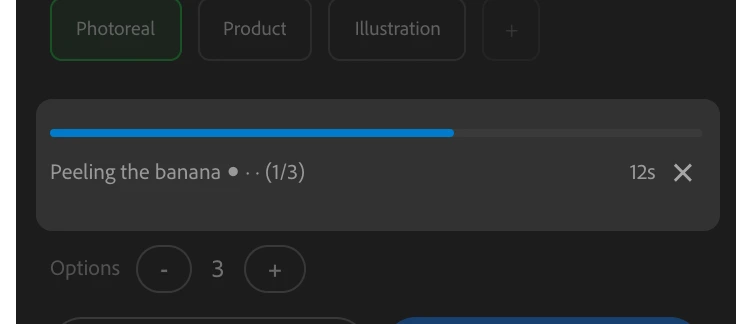
The progress bar shows real progress with elapsed time, an honest per-model estimate, and a cancel button. Stop any run mid-flight without touching your document. Each open document gets its own progress and its own cancel.
The result
The model's output is cropped and resized to your exact selection dimensions, then pasted back as a new layer. There is no horizontal or vertical squish on tall or wide selections, even when the model returns an off-ratio image. Ask for more than one option and the layers are grouped together so you can compare and keep the best.
The eleven models
Eleven models across three providers, all in the same picker. The table below is the exact lineup, with the resolutions, reference caps, and per-model controls each one supports.
The lineup
| Model | Provider | Sizes | Max refs | Notable |
|---|---|---|---|---|
| Nano Banana 2.1 | 1K / 2K / 4K | 14 | Default Google model in 2.3.0, thinking levels, Google Search, system prompt | |
| Nano Banana 2 | 1K / 2K / 4K | 14 | Previous Google workhorse, thinking levels, Google Search, system prompt | |
| Nano Banana Pro | 1K / 2K / 4K | 14 | Highest fidelity, Google Search, system prompt | |
| Nano Banana 2 Lite | 1K | 14 | Half the NB2 price, thinking levels, system prompt | |
| Nano Banana | 1K / 2K | Up to 3 recommended | The original Gemini Flash image model, system prompt | |
| GPT Image 2 | OpenAI | 1K / 2K / 4K | 15 | Quality tier (low / medium / high) |
| GPT Image 2.5 Sunburst | OpenAI | 1K / 2K / 4K | 15 | Default OpenAI model, quality tier low / medium / high / Extra High / Max, precise edits |
| GPT Image 2.5 Flare | OpenAI | 1K / 2K / 4K | 15 | Faster tier, quality low / medium / high / Extra High / Max |
| Grok Imagine Image 2.0 | xAI | 1K / 2K | 2 | Quality tier (low / medium), aspect-ratio picker |
| Grok Imagine Image Quality | xAI | 1K / 2K | 2 | Aspect-ratio picker |
| Grok Imagine Image | xAI | 1K / 2K | 2 | Aspect-ratio picker, cheapest tier |
Google (Gemini)
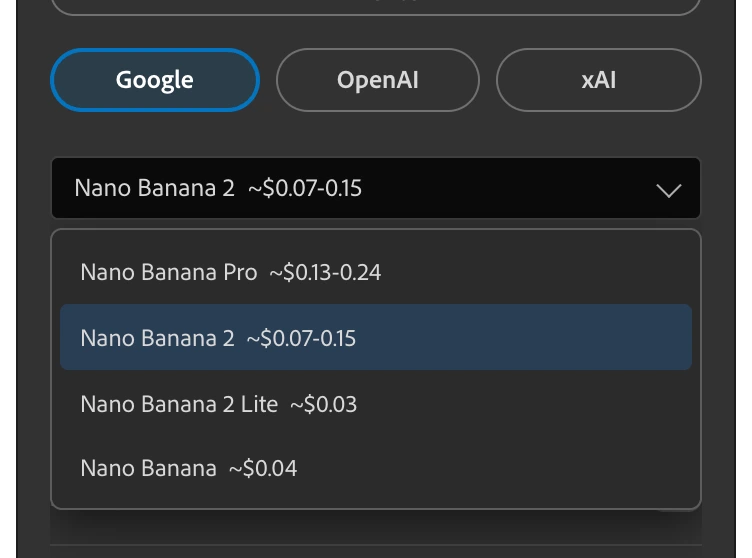
- Nano Banana 2.1. Default Google model for new installations and when switching to Google in 2.3.0; a saved model choice is preserved. Thinking levels, Google Search grounding and system prompts. 1K, 2K or 4K.
- Nano Banana 2. The preceding Google workhorse, still available in the picker. Thinking levels, Google Search grounding, and a native system prompt. 1K, 2K, or 4K.
- Nano Banana Pro. Premium reasoning model, highest fidelity for hero shots and print detail. Supports Google Search grounding and a system prompt. No thinking control (the API rejects it). 1K, 2K, or 4K.
- Nano Banana 2 Lite. Half the price of Nano Banana 2 for quick drafts. Thinking levels and a system prompt, but 1K only and no Google Search (the API rejects both).
- Nano Banana. The original Gemini 2.5 Flash image model. Creator MAX offers direct 1K or 2K output and sends the selected size to Google without tool-side upscaling; Google says the model works best with up to 3 input images. No thinking or grounding.
OpenAI
- GPT Image 2.5 Sunburst. The default when you pick OpenAI, tuned for precise edits. Exposes a Quality picker with two more tiers than GPT Image 2: low, medium, high, Extra High, and Max. Takes up to 15 reference images. 1K, 2K, or 4K.
- GPT Image 2.5 Flare. The faster OpenAI model, same Quality picker (low, medium, high, Extra High, Max) and the same reference and resolution limits as Sunburst. Pick it when speed matters more than the extra edit precision.
- GPT Image 2. Strong text rendering and a distinct look. Exposes a Quality picker (low, medium, high) instead of thinking. Takes up to 15 reference images. 1K, 2K, or 4K, where 4K is the gpt-image-2 ceiling tier (around 8 megapixels, up to a 3840 px long edge) rather than a literal 4096-wide UHD.
xAI
- Grok Imagine Image 2.0. xAI's current image model and the default when you pick xAI. It generates and edits, and it is the first Grok model with a Quality picker: Low for cheap drafts, Medium for final work. 1K or 2K, up to 2 reference images. Unlike the two models below, its price moves with both quality and resolution, and it bills for reference images.
- Grok Imagine Image Quality. Higher-fidelity image edit with an aspect-ratio picker. 1K or 2K, up to 2 reference images.
- Grok Imagine Image. The faster, cheapest tier for quick iteration. Same aspect-ratio control, same 2-reference cap.
Choosing a model
A quick guide to which model fits which job.
Rules of thumb
- Rough, fast, and cheap. Nano Banana 2 Lite, Nano Banana 2, or Grok Imagine Image.
- Hero shots and print detail. Nano Banana Pro.
- Need true 4K. Nano Banana 2.1, 2 or Pro, or a GPT Image 2 family model for its ceiling tier.
- Strong text in the image, or a different look. GPT Image 2, GPT Image 2.5 Sunburst, or GPT Image 2.5 Flare.
- Most demanding edits, most detail. GPT Image 2.5 Sunburst at Extra High or Max quality.
- Real products, logos, places, current references. A Google model with Google Search grounding on.
- Most people rough with a flash model and finish with Pro.
Switch any time
The model is chosen per generation. Run the same prompt across two models and keep the better layer. The panel swaps its controls automatically when you switch (the Quality picker for GPT Image, the aspect-ratio picker for Grok, thinking levels for Nano Banana 2.1, 2 and 2 Lite), so the right options are always the ones in front of you.
Manage models
Show only the models you actually use.
Manage models
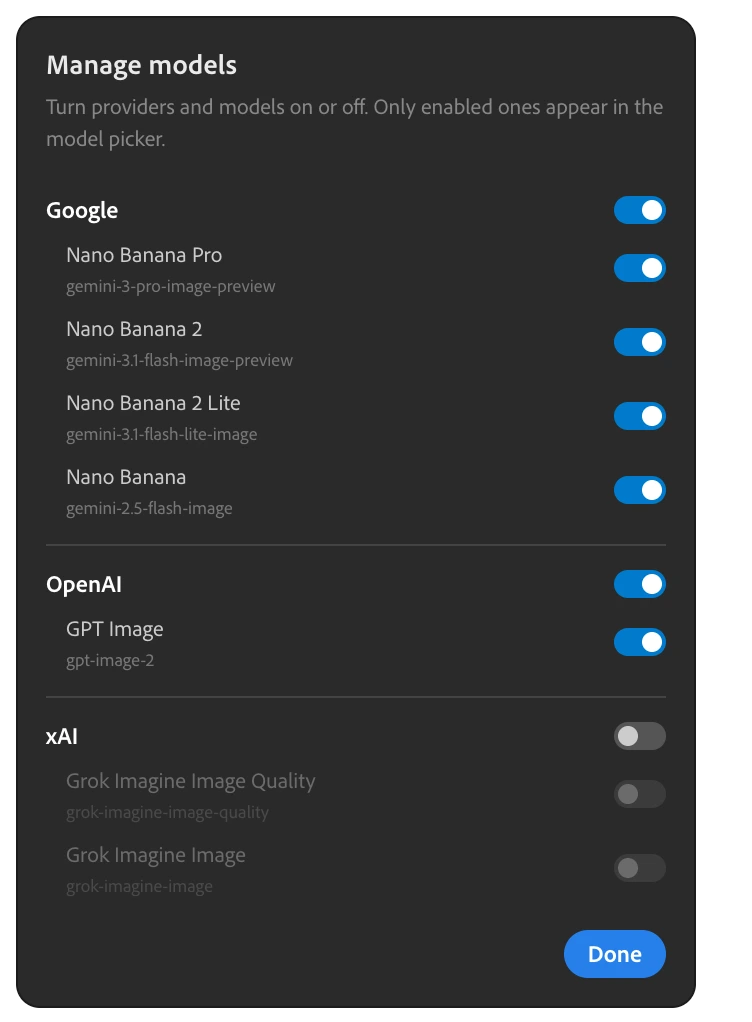
Open Manage models from Settings to enable or disable whole providers or individual models. Out of the box, only Google is shown. OpenAI and xAI are hidden until you switch them on, so the panel stays focused on the toolkit you have keys for.
How it behaves
- Hidden models drop out of the picker entirely.
- If you hide the provider of the model you had selected, Creator MAX falls back to Google's first enabled model.
- At least one provider has to stay visible. The toggle will not let you hide the last one.
- Sections in the panel also show and hide on their own based on the active model. Thinking appears only on Nano Banana 2.1, 2 and 2 Lite, Quality only on GPT Image, the aspect-ratio picker only on Grok.
Bring your own key
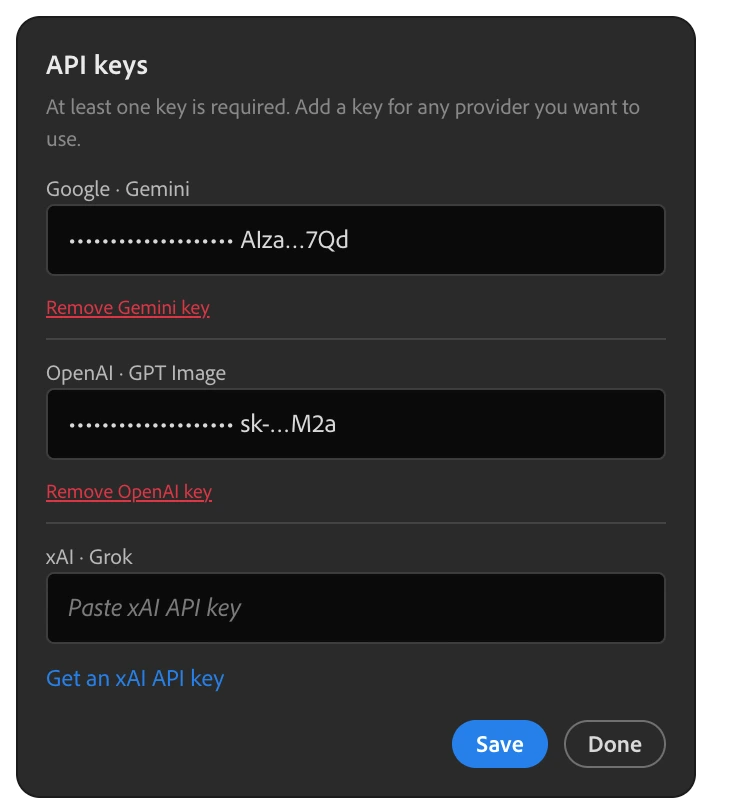
Creator MAX never proxies your work. You bring a key per provider and calls go directly from Photoshop to that provider, billed to you with no markup. One key is enough to start.
Google (Gemini)
- Open the API Keys page in Google AI Studio at aistudio.google.com and sign in.
- Confirm or import the intended Google Cloud project, then create a new auth key. All new AI Studio keys use the auth-key system; unrestricted Standard keys stopped working on 19 June 2026 and Standard-key support retires in September 2026.
- Paste it into Creator MAX under Settings, Manage API keys.
- The current Nano Banana image models have no free API tier. Set up billing on the same Google Cloud project before generating images.
OpenAI
- Create a key at platform.openai.com under API keys. A key belongs to one project, so check the project shown at the top of the page.
- Verify the organization under Settings, Organization, General. OpenAI gates its GPT Image models, gpt-image-2 included, behind API organization verification.
- Add credit. The OpenAI API is prepaid, the smallest first purchase is $5, and there is no free image tier.
- Paste the key into Creator MAX, then switch OpenAI on in Manage models.
xAI
- Create a key at console.x.ai under API Keys. Keys, credits, and usage all belong to the team selected in the console.
- Load prepaid credits under Billing. While the invoiced billing limit sits at its $0 default, requests are rejected once the balance reaches zero.
- Paste the key into Creator MAX, then switch xAI on in Manage models.
Where keys live
Each provider key is stored locally and validated by that provider (OpenAI and xAI use their models endpoint; Google validates on the first call). When Creator MAX calls a provider, the API key is sent directly to that selected provider only so it can authenticate the request. The provider API endpoints are generativelanguage.googleapis.com, storage.googleapis.com, api.openai.com, and api.x.ai. Store licensing is separate: the aescripts build also contacts its licensing service at *.aescripts.com. Bielfor never receives or sees your keys.
Manage keys
All your keys in one place.
Manage API keys
A dedicated window holds your Google, OpenAI, and xAI keys, each with its own field, a get-a-key link to the right console, and a remove link. Settings keeps a one-line summary plus a Manage button so the panel stays clean.
Get-a-key links
- Google. aistudio.google.com/app/apikey
- OpenAI. platform.openai.com/api-keys
- xAI. console.x.ai
Prompt & Enhance
Write a prompt, or let Enhance write it for you.
The prompt box
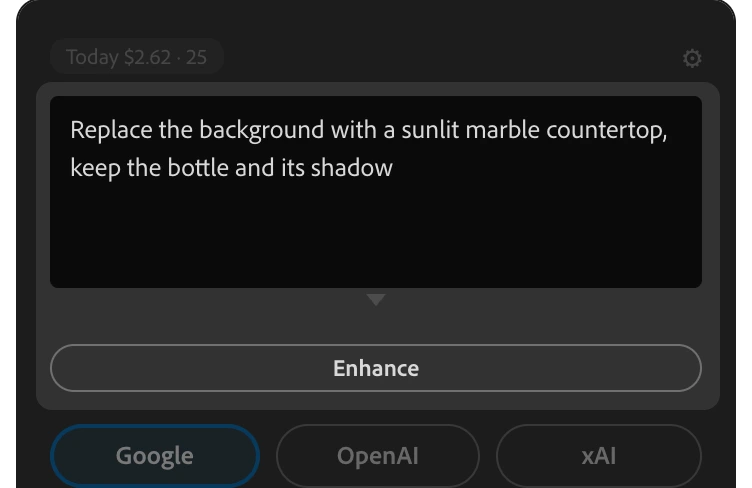
Type the edit you want into the resizable prompt box. Clear Prompt empties it, Submit runs it. Your prompt is conditioned on the active selection, so describe the change, not the whole scene.
Enhance Prompt
One click rewrites a rough idea into a structured production prompt covering subject, lighting, composition, and mood. Enhance sends your current selection along with the text so the rewrite is context-aware. It is routed through a provider and model you choose in Settings, separate from the image model.
The review modal
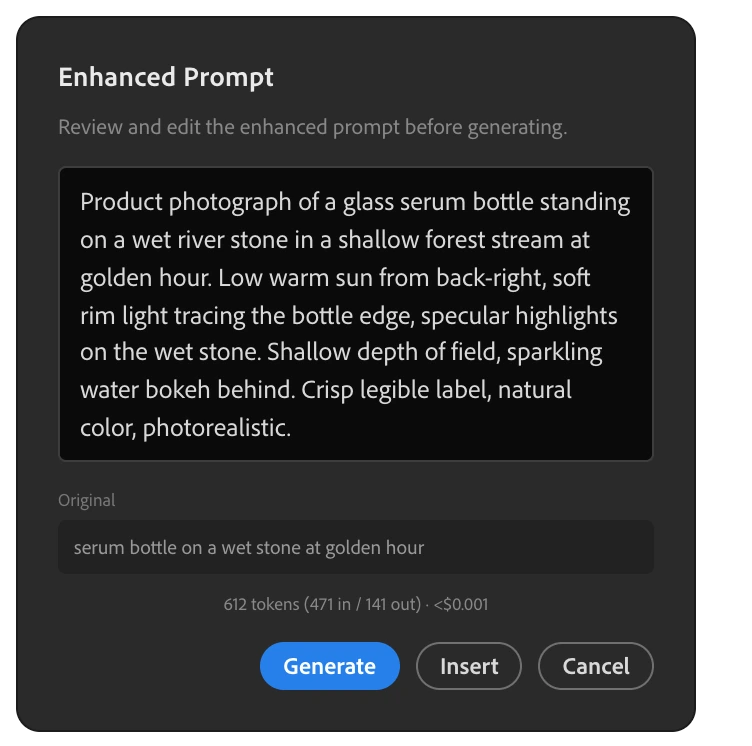
Enhance never silently overwrites your prompt. It opens a review modal with the enhanced text (editable), your original side by side, and the token usage plus cost for the rewrite. From there you can Generate straight away, Insert the enhanced text into the prompt box, or Cancel.
Which models enhance
The Enhance picker is a curated set of fast, vision-capable text models, not the flagship tiers. Google's Gemini 2.5 Flash Lite (the default), Gemini 2.5 Flash, and Gemini 3 Flash; OpenAI's GPT-4.1 mini and GPT-4.1; xAI's Grok 4.3. Each shows its per-million-token input and output price next to it, so the cheap-utility choice is obvious.
Resolution
Output size is three buttons, each with a live cost hint.
1K, 2K, 4K
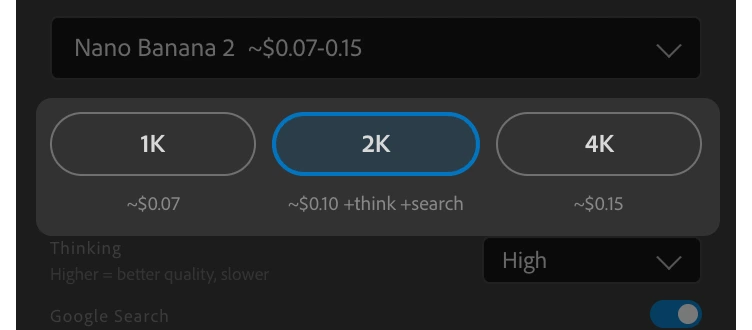
Resolution is chosen with discrete buttons, not a slider. Only the sizes the active model supports are shown. Google's Nano Banana 2.1, 2 and Pro and OpenAI's GPT Image 2, GPT Image 2.5 Sunburst, and GPT Image 2.5 Flare all offer 1K, 2K, and 4K. The original Nano Banana offers 1K and 2K, passed directly to Google without tool-side upscaling, while both Grok models offer 1K and 2K. That is Creator MAX route behavior, not a claim that Google documents a native 2K tier. The default is 2K, clamped to whatever the current model allows.
Live cost hints
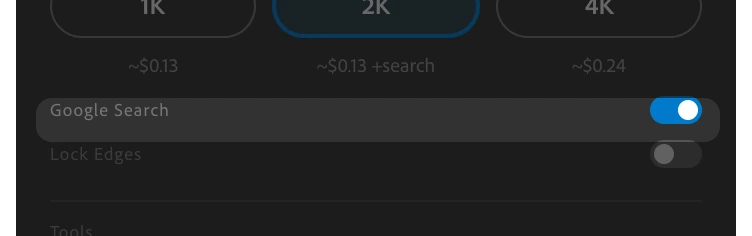
Each resolution button shows a cost and time hint under it, specific to the active model. The active button's hint also appends the modifiers in play, +think when a thinking level is on, +search when Google Search grounding is on, so the number reflects what you are actually about to spend.
How each provider reads the size
- Google. The tier is passed through and Gemini resolves the target resolution server-side.
- OpenAI. The size is computed from your selection's aspect ratio, area-scaled to the tier. 1K is around one megapixel, 2K around four, 4K is the gpt-image-2 ceiling near eight.
- xAI. Only a coarse 1k or 2k is sent. Shape is controlled by the aspect-ratio picker instead.
Thinking levels
Trade speed for deliberation, on Nano Banana 2.1, 2 and 2 Lite.
None, Minimal, High
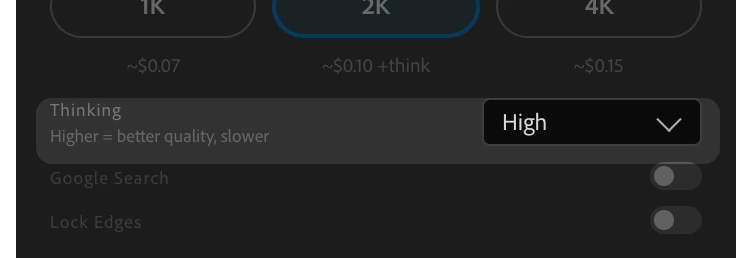
Nano Banana 2.1, Nano Banana 2 and Nano Banana 2 Lite expose three panel choices: None, Minimal, and High. None is the panel default: it omits the Gemini thinking config instead of sending a zero-thinking mode. The provider then applies its model-specific default. For Nano Banana 2 and 2 Lite, the documented provider default is Minimal. None does not disable thinking or guarantee lower latency or cost; it is not a promise about the default of a different model. Choose Minimal or High when you want to send that level explicitly.
Only the flash models
Thinking is a Nano Banana 2.1 / 2 / 2 Lite control and nothing else. Nano Banana Pro does not support it (the Gemini API returns an error if it is forced), and OpenAI and xAI have no equivalent. The thinking selector is hidden whenever the active model does not support it.
Quality, aspect & grounding
Three model-specific controls. The panel shows the right one for the model you pick.
Quality (OpenAI)
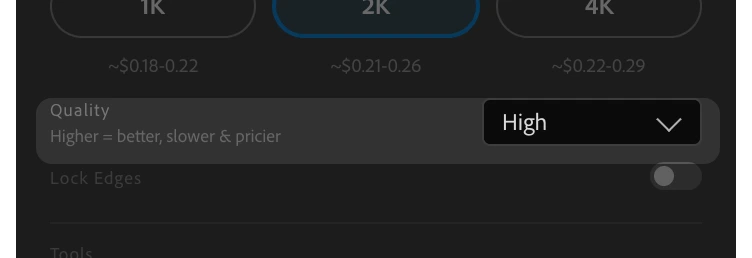
GPT Image 2 shows a Quality picker: low, medium, or high. GPT Image 2.5 Sunburst and GPT Image 2.5 Flare show the same picker plus two higher tiers, Extra High and Max, for the most detailed results. The default is medium. Quality is the dominant cost driver on OpenAI, and the resolution hints update to a quality-aware estimate when you change it. The chosen quality is recorded per generation in the usage ledger.
Aspect ratio (xAI)
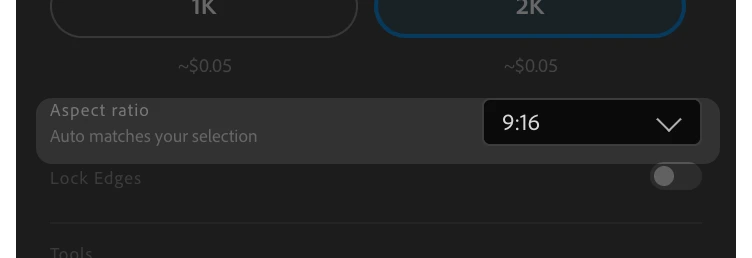
Grok shows an aspect-ratio picker with Auto, 1:1, 4:3, 3:4, 16:9, 9:16, 3:2, and 2:3. Auto maps your selection to the nearest supported ratio so the paste-back keeps its shape. (Other providers derive shape from the selection directly, so they do not need this control.)
Google Search grounding (Google)
On Nano Banana 2.1, Nano Banana 2 and Nano Banana Pro, a Google Search toggle lets the model consult live Google Search. Useful for real products, logos, places, and current references. It is off by default. When on, a +search tag is added to the cost hint, and any sources the model used surface behind a Sources link in the panel footer.
Variants & options
Ask for up to four takes at once.
1 to 4 options per submit
The Options stepper runs from 1 to 4. One Submit fires that many parallel generations. Each result pastes back as its own layer, and when you ask for more than one they are grouped into a single layer group so you can compare and keep the best.
Concurrency
Options and multi-document requests share a cap of four in-flight calls. Partial success is allowed, so if one take fails the others still paste back. Cost scales linearly with the option count, and the cost hint multiplies accordingly: four options cost four generations.
Reference images
Condition a generation on images you already have.
Attach references
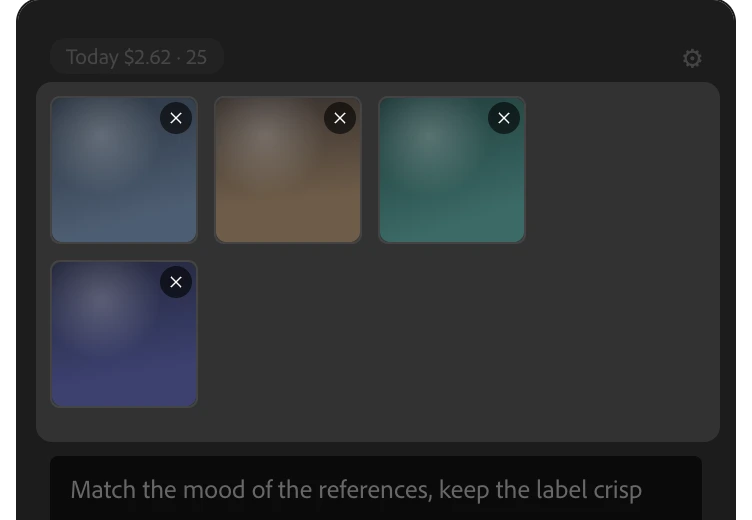
- Drag and drop onto the panel (a full-panel drop zone appears), use the Reference card's file picker, or pull from the current Photoshop layer or document with the Layer card.
- Up to 14 references on Google models, 15 on OpenAI, 2 on xAI Grok.
- Your active selection always counts as one input image on top of the references, so the panel reserves a slot for it.
At the cap
The Reference button shows a live count against the model's limit and stops you at the cap with a plain message (for example, Grok Quality supports up to 3 reference images, counting your selection). If you switch to a model with a lower cap, the excess references are greyed out with a note rather than failing, so you can switch back without re-adding them.
Auto-compression
Every reference is silently re-encoded to at most 2048 px on the longest edge as JPEG before sending. This keeps the payload roughly ten times smaller and avoids provider errors on very large images. Your full-resolution originals stay untouched on your machine.
Inpainting & Lock Edges
Generate into a selection without distorting the rest of the image.
Selection inpainting
Make a selection and Creator MAX reads it as the base image, generates only that region, then pastes the result back as a new layer matched to your selection's exact dimensions. No horizontal or vertical squish, even on tall or wide selections, and even when the model returns an off-ratio image. Creator MAX needs a selection to run; it will not generate without one.
Lock Edges
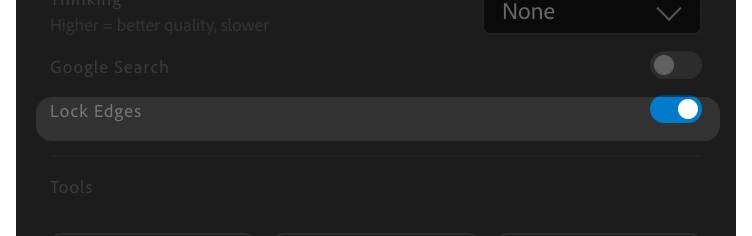
Turn on Lock Edges to keep the borders of the selection untouched, so the edit blends into the surrounding image instead of cutting a hard seam. It is off by default. When on, it adds an instruction to the prompt to leave the borders unchanged, and is logged as a lock edges badge in history so you can see which past generations used it.
Presets & system prompts
Save the setups you reach for every day.
User presets
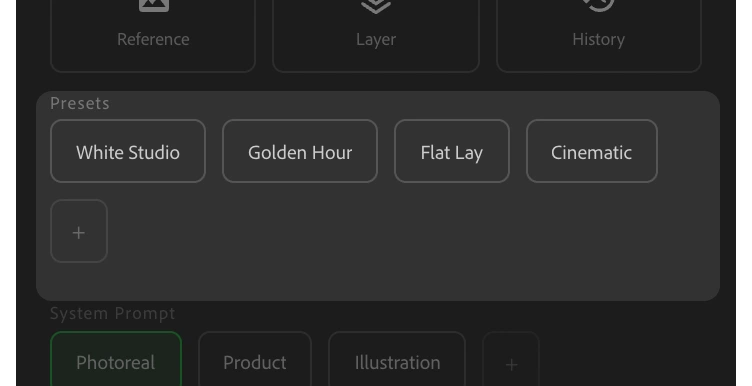
Save any prompt configuration as a named preset and recall it instantly. Name it, edit it inline, delete it (with a confirmation) when it stops earning its slot.
System prompts
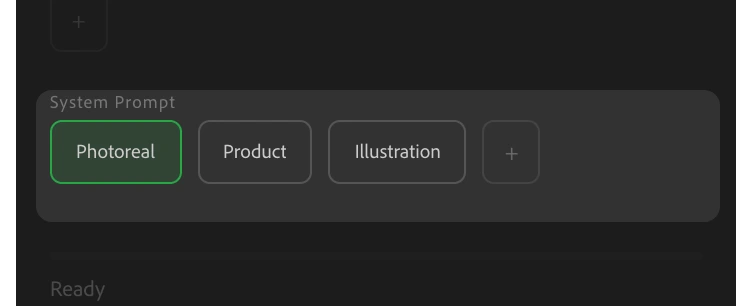
A system prompt is a hidden background instruction that shapes every generation, separate from the per-generation prompt. Save several (photorealistic, illustration, product, whatever mode you work in) and switch with one click to hold a consistent look across a session.
Where system prompts apply
System prompts are native to the Google models, which accept a real system field. On OpenAI and xAI, where the image endpoints have no system field, Creator MAX folds the system prompt into the prompt text so the intent still carries. The panel notes that native system prompts are a Gemini feature.
History, cost & export
Every generation, recoverable.
Prompt history
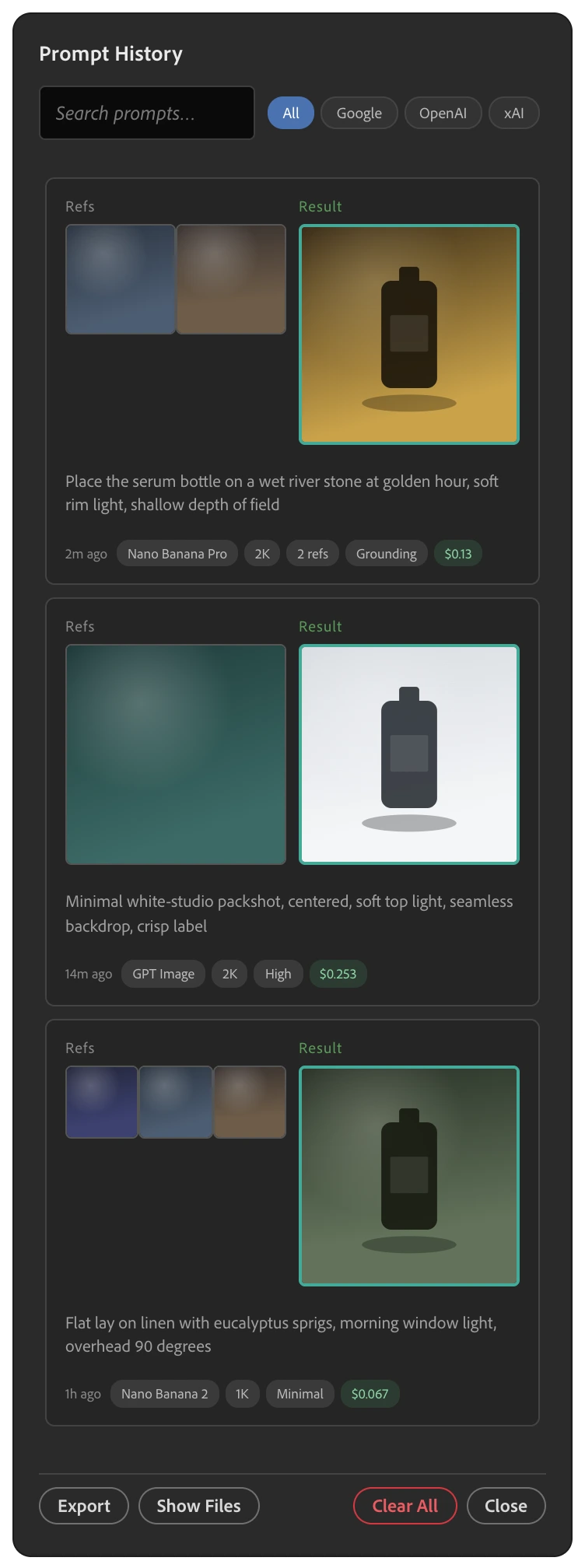
Recent generations are saved with a result thumbnail, the prompt (both your original and the enhanced version when you used Enhance), and badges for time, model, and cost. Click any entry to reload the exact setup and rerun or tweak it. Reuse restores the original context: selection-only records re-place the saved image as a centered source layer, reference-bearing records restore the references grid.
Search and filter
A search field plus All / Google / OpenAI / xAI provider filters narrow the list, so a specific generation from last week is a couple of clicks away. Show Files opens the folder with the saved images. Clear All asks for confirmation before wiping (and does not touch the spend ledger).
Live cost
Each generation logs its cost in USD at current provider pricing, shown on the entry so you see spend as you go, not at month-end.
Export
Export the full history as JSON (a complete backup), CSV (text only), or Markdown.
Usage & Spend
A truthful, persistent record of what you have spent.
Today chip
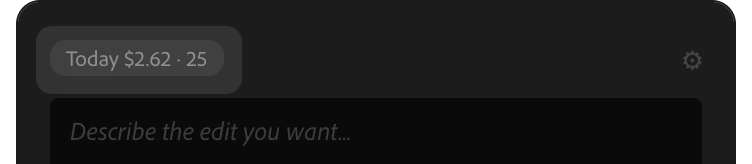
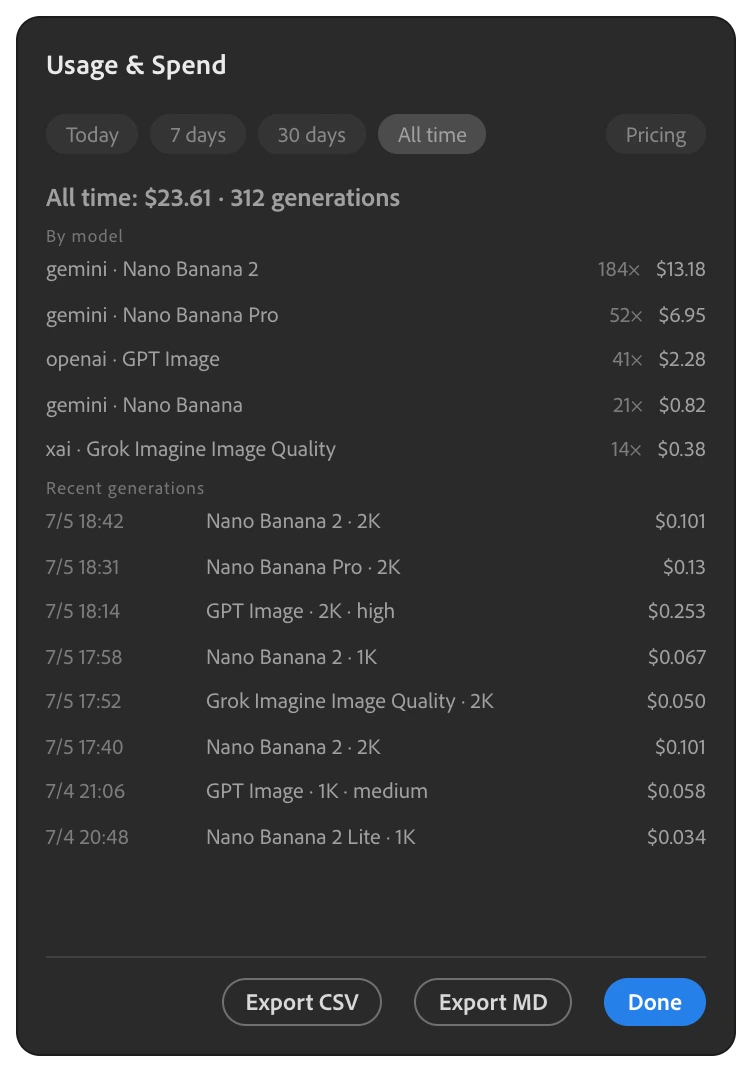
A Today $X · N chip sits in the panel's top bar, showing today's spend and generation count. It is backed by the on-disk ledger, so it survives restarts and rolls over at local midnight. Click it to open the full Usage and Spend dashboard.
Usage & Spend dashboard
The dashboard opens as a full-panel sheet with period tabs (Today, last 7 days, last 30 days, All time) plus a Pricing tab. Each period shows a summary total, a By model breakdown table, and the 20 most recent generations with their time, model, size, quality, and cost.
How cost is computed
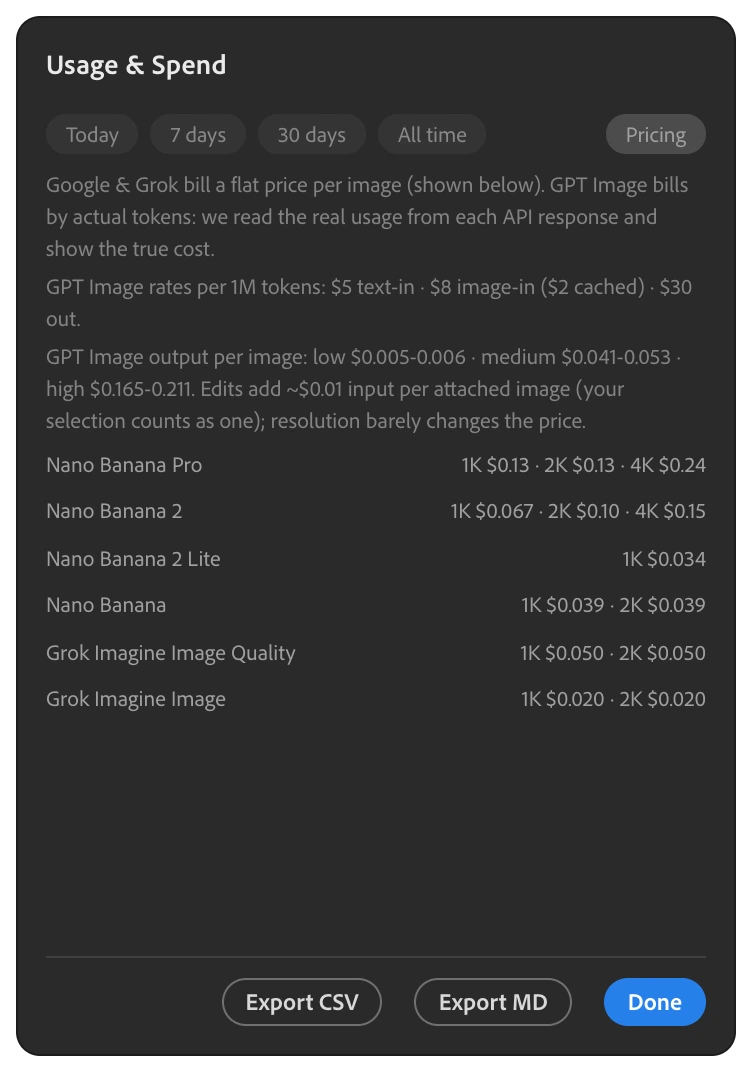
Two billing models, stated plainly in the Pricing tab. Google and xAI are flat per-image, recorded from the rate table. OpenAI's GPT Image 2, GPT Image 2.5 Sunburst, and GPT Image 2.5 Flare are token-metered: the real token counts from each API response drive the true cost, with the cached-input discount applied when present. Google's thinking and side-text tokens are also read from each response and billed at the text-output rate, so the recorded number matches your Google bill rather than an output-only estimate. Every row carries a basis (actual, table, or estimate) so you can see whether a number is measured or estimated.
The ledger
Spend is kept as an append-only JSONL ledger, one file per month, in the plugin data folder. Writes go through a serial queue so they never collide and never block a render. Clearing your prompt history does not touch the ledger. Export the full ledger to CSV or Markdown at any time.
Multiple documents
Work across several open documents at once.
Multi-document concurrency
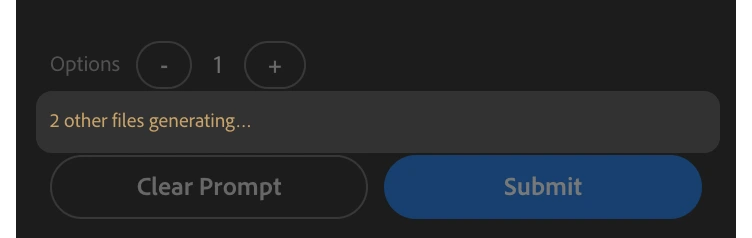
Kick off generations in more than one open document. Each result routes back to the document it came from, by id, and is applied silently when you return to that file. A hint tells you how many other files are generating, and each document keeps its own cancel.
The shared cap
All in-flight calls, across every option and every document, share a single cap of four concurrent requests. So a four-option submit and a second document's render queue behind each other rather than overwhelming a provider.
Photoshop actions
Fold generations into your Photoshop automations.
Action recording
With an Action recording open (Photoshop 25.01 and later support this), Creator MAX records each generation as a step, capturing the prompt, model, and resolution as a JSON config. Replay or batch it like any other Photoshop action. Recording is non-blocking: if it cannot record, it only warns and your generation still runs.
Settings & toggles
Tailor the panel to your workflow.
Visibility toggles
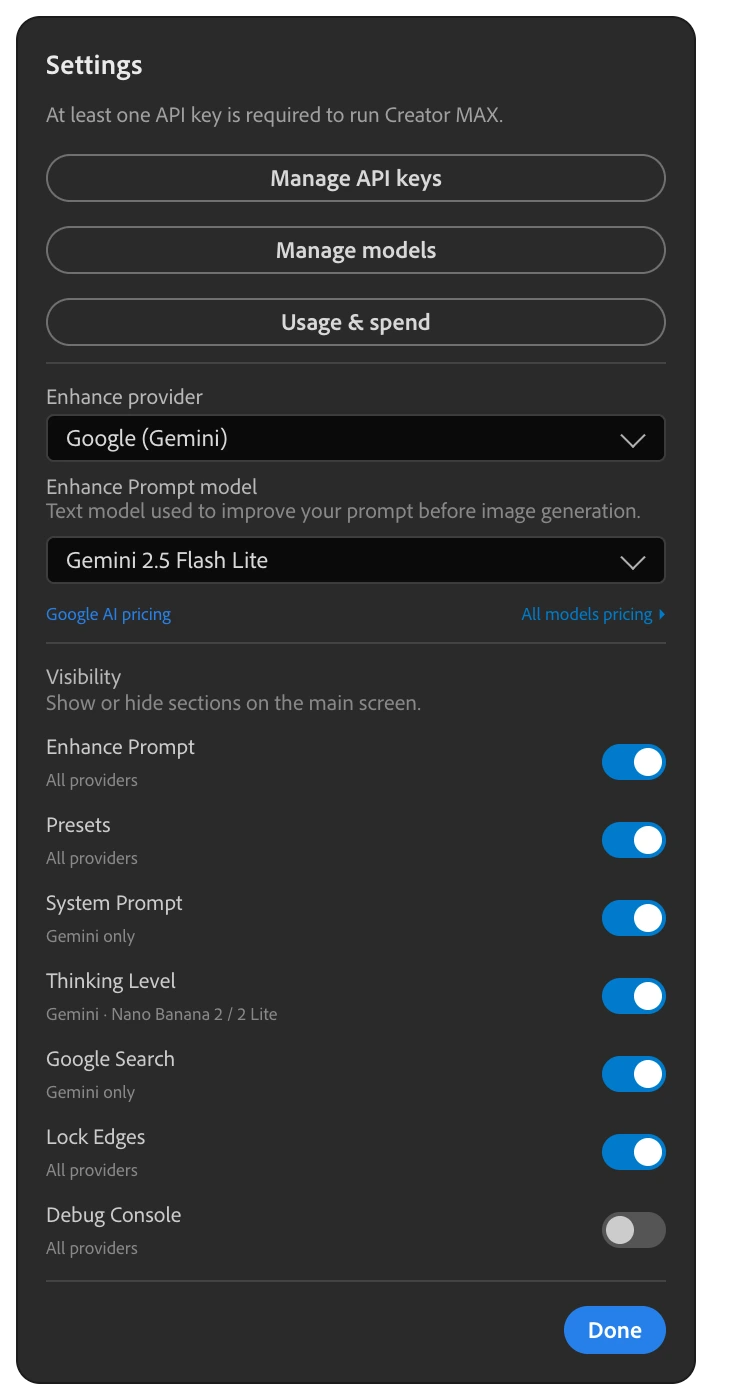
Seven sections of the panel can be shown or hidden: Enhance, presets, system prompts, thinking level, Google Search, Lock Edges, and the debug console. All are on by default except the debug console. Hide what you do not use and the panel collapses to your essentials.
Enhance provider and model
Pick which provider and which text model rewrite your prompts when you press Enhance, independent of the image model. The list is the curated fast, vision-capable set (Gemini Flash tier, GPT-4.1 and GPT-4.1 mini, Grok 4.3) with per-million-token input and output pricing shown next to each, plus a link to the provider's pricing page.
Debug console
A timestamped API log you can toggle on when you need to look under the hood, with a Clear button. Off by default.
Tips, tricks & known limits
Field notes from real use. Short, blunt, and updated as the models change.
Match reference ratios to your selection
The model conditions on two things at once: your selection and your reference images. When their aspect ratios disagree, it has to reconcile two different frames, and the result drifts: compositions stretch, subjects migrate, crops surprise you.
Keep every frame in the chain the same shape. Editing a 9:16 selection, attach 9:16 references. If the references you have are square, select a square region with the Marquee tool instead and work inside it. And when you attach several references, keep them all in one ratio. A mixed bag pulls the composition in different directions.
Nano Banana tips
- Draft on Nano Banana 2 or 2 Lite, finish on Pro. Lite is half the price of NB2 and fine for exploring composition; Pro is the fidelity ceiling.
- Raise Thinking only when layout has to obey relationships: reflections, perspective, text blocks, multiple interacting objects. None leaves the provider's thinking configuration omitted; it is not a promise of zero thinking, lower latency, or lower cost.
- Toggle Google Search when the prompt names a real product, brand, or place. Without it the model guesses; with it the render is anchored to how the thing actually looks.
- Use a system prompt for the session's look (photoreal, product, illustration) instead of repeating style words in every prompt. On Google models it is a true system field, not prompt text.
- If a render looks CGI or mockup-like, switch to Pro and simplify the prompt to plain photographic language. Shorter prompts often read more real than adjective piles.
GPT Image tips
- Quality is the cost lever, not resolution. Low costs a fraction of a cent and is fine for exploring; high runs to a couple of tenths of a dollar and is for finals. Resolution barely moves the price on GPT Image 2.
- It renders text better than the others. Put the exact wording in quotes in the prompt and it usually survives.
- Rerunning with the same references soon after is cheaper: OpenAI bills recently-seen input at a quarter of the price, and the ledger applies the discount automatically when it lands.
- GPT Image 2.5 Sunburst and Flare add Extra High and Max quality above high, for the most detailed edits. Unlike GPT Image 2, their cost roughly doubles from 1K to 2K, so check the resolution hint before jumping to a larger size.
Grok tips
- Two references maximum, and your selection takes one input slot, so plan which single image matters most.
- Shape comes from the aspect-ratio picker, not the selection. Leave it on Auto to follow your selection, or pin it when you need an exact ratio.
Known limits
- Selections outside roughly 1:3 to 3:1 are rejected before anything is sent. Reselect a less stretched region.
- References are recompressed to 2048 px JPEG before sending. Fine print or tiny logos in a reference will not survive the trip; crop the reference so the subject fills the frame.
- 4K is provider-relative. Real UHD on the Google 4K models, an ~8 MP ceiling on GPT Image 2, not available on xAI, Nano Banana 2 Lite (1K only), or the original Nano Banana (2K cap).
- Nano Banana Pro rejects thinking levels; Nano Banana 2 Lite rejects Google Search and anything above 1K. The panel hides what the active model cannot do, so a missing control is a model limit, not a bug.
- Four calls run at once, shared across options and open documents. A fifth request queues behind them.
- Action recording needs Photoshop 25.01 or later. If recording fails, the generation still runs; you just do not get the action step.
Privacy & local-first
Local-first by design, not as a setting.
What stays on your machine
Prompts, reference images, generation results, prompt history, and the spend ledger are all stored in the plugin's local data folder. There is no Bielfor account, no sync, and no telemetry.
What leaves your machine
Generation and optional Enhance Prompt calls go only to the provider configured for that action. Enhance Prompt can send your prompt text and current Photoshop selection to the separately selected Enhance provider and model. Provider traffic and licensing traffic are separate. The aescripts build additionally permits its store licensing service at *.aescripts.com; this does not route your image-generation requests through Bielfor. Your API key travels straight to that provider; Bielfor is never in the path and never sees your prompts, images, selections, or keys.
Errors & troubleshooting
When something goes wrong, the panel tells you what to do.
Plain-language errors
Creator MAX maps provider errors (auth, rate limit, billing, content policy, overload, timeouts) to a plain explanation of the cause and what to do next, alongside the provider's own detail, instead of a raw API dump.
Common fixes
- Key looks invalid or unauthorized. Re-check the key under Settings, Manage API keys.
- Rate limit, quota, spend limit, or billing. Read the provider error detail, then check the selected model, project and key, rate and quota usage, spend limits, and billing status; do not assume one cause.
- Model overloaded or a 5xx. Retry, or switch to another model.
- Nothing pastes back. Check you have an active document and a selection. Creator MAX needs a selection to generate.
- Selection rejected before running. Your selection is too extreme in shape (outside roughly 1:3 to 3:1). Reselect a less stretched region.
Timeouts
Generation calls have generous timeouts (around five minutes on Google, seven on OpenAI). If a render is genuinely stuck, the cancel button on the progress bar stops it cleanly without affecting your document.
Pricing, licensing & refunds
One price for the plugin. Usage billed by the providers.
The plugin
- One-time $49.99 through Adobe Exchange.
- Perpetual license to the purchased version, with every future update included, free for life.
- One operator, one seat. Installation, activation and concurrent-use limits follow the purchase store's terms.
- Licensed for commercial client work.
Generation cost
You pay each provider directly at their own rates, with no markup from Bielfor. Creator MAX shows the USD cost on every generation, and tracks the running total in the Usage and Spend dashboard. Bielfor offers no free generation tier or managed credits; any provider trial or allowance remains subject to that provider's current terms.
A rough sense of cost
| Model | 1K | 2K | 4K |
|---|---|---|---|
| Nano Banana Pro | ~$0.13 | ~$0.13 | ~$0.24 |
| Nano Banana 2 | ~$0.07 | ~$0.10 | ~$0.15 |
| Nano Banana 2 Lite | ~$0.03 | — | — |
| Nano Banana | ~$0.04 | ~$0.04 | — |
| GPT Image 2 (medium) | ~$0.06 | ~$0.07 | ~$0.07 |
| GPT Image 2.5 Sunburst (medium) | ~$0.01 | ~$0.03 | ~$0.04 |
| GPT Image 2.5 Flare (medium) | ~$0.01 | ~$0.03 | ~$0.04 |
| Grok Imagine Image 2.0 (medium) | ~$0.06 | ~$0.08 | — |
| Grok Imagine Image Quality | ~$0.05 | ~$0.07 | — |
| Grok Imagine Image | ~$0.02 | ~$0.02 | — |
Refunds
The store that took the payment handles the refund. For an Adobe order, Adobe Exchange controls refund eligibility, the decision, the transaction, and timing, so use the refund or support option Adobe presents for your order. For an aescripts + aeplugins order, aescripts takes the payment and issues the refund; its published terms ask you to report a problem within 90 days of purchase and state that refunds can only be processed up to 90 days after the purchase date. Email support@bielfor.com for seller-side questions if it stalls; Bielfor cannot guarantee approval or timing at either store.